Speed Test
The Speed Test page shows your last speed test in full: your speeds and responsiveness, whether your connection delivers your Internet plan, and the latency of your connection while it is idle and while it is busy. In earlier versions, the dashboard showed these results in the Network Quality Report.
To open it:
- choose Speed Test under Measurements in the sidebar of the PeakHour Advisor;
- or click the ISP column on the Internet Dashboard, then click Open Full Report › on its card.
The page works with the AI Advisor turned off. It needs macOS 26 or later. On macOS 14 and 15, Open Full Report › opens the same results in a popover on the dashboard. See Speed Test on macOS 14 and 15.
Run a speed test
Section titled “Run a speed test”Click Run Speed Test at the top of the page. The button reads Testing… while the test runs. Before your first test, the page shows No Speed Test Yet with the same button.
The test uses Apple’s networkQuality tool. It fills your connection with several connections at once to a nearby Apple server, so other traffic slows down for a few seconds. To run tests on a schedule, turn on Run Speed Tests.
Every test goes into the History, also while the AI Advisor is off.
The figures
Section titled “The figures”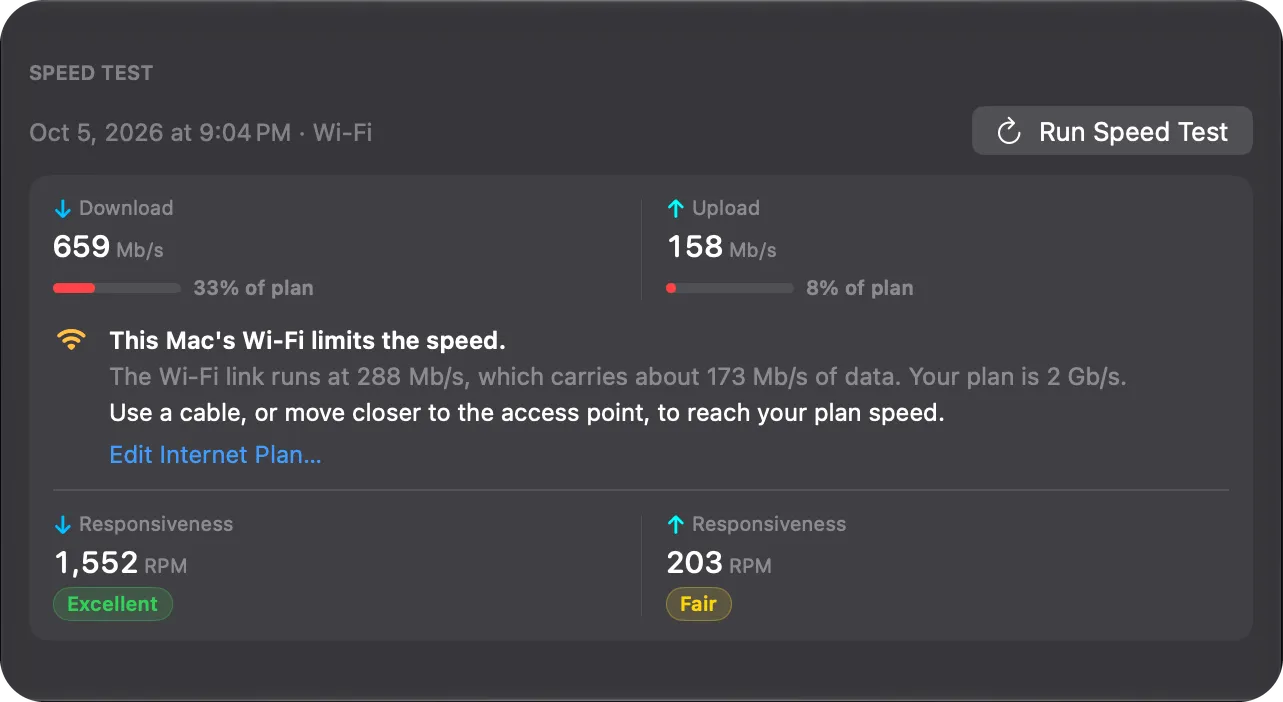
The top of the page shows the time of the test and the interface it used, for example Wi-Fi, then four figures:
| Figure | What it shows |
|---|---|
| Download | The highest download speed that the test reached, with several connections at once. |
| Upload | The highest upload speed that the test reached. |
| Responsiveness (↓ and ↑) | Round-trips Per Minute (RPM) while the test fills the connection, for download and for upload. Higher is better. A pill gives the band — see How the grade works. |
With an Internet plan for this network, each speed has a bar such as 82% of plan. The bar is green from 85% of your plan, yellow from 70%, and red below that. Hover over the bar to see your plan speed. A plan with only one speed gives a bar for that speed only.
Click the i beside a figure or a section heading to read what the measurement means.
Your plan
Section titled “Your plan”With a plan set, a verdict under the speeds says where your speed stops. It reads your download speed:
| Verdict | When | What to try |
|---|---|---|
| Your connection delivers your plan speed. | The last test reached 85% of your plan or more. | Nothing. A test seldom shows 100%, because the protocols and the test server take a part of each link. |
| This Mac’s Wi-Fi limits the speed. | This Mac’s Wi-Fi link carries less data than your plan. A Wi-Fi link carries about 60% of its Tx rate as data. | Use a cable, or move closer to the access point. |
| This Mac’s cable connection limits the speed. | This Mac’s Ethernet link carries less data than your plan. An Ethernet link carries about 94% of its speed as data. | Use a faster Ethernet port or adapter. |
| This Mac’s Wi-Fi may limit the speed. (on a cable: This Mac’s connection may limit the speed.) | The last test is below your plan. A speed test also measures this Mac’s own link, so that link can be the limit. | Run a speed test over a cable at the router. |
| Your connection is below your plan speed. | Your last 3 tests in 7 days, over a link faster than your plan and without a VPN, have a middle result under 70% of your plan. | Run a speed test over a cable at the router. If the result stays low, contact your ISP with the results. |
Tests from before you set the plan don’t count.
Edit your plan
Section titled “Edit your plan”Under the verdict, the page shows an Edit Internet Plan… link. A wrong plan gives wrong bars and a wrong verdict. When the bars or the verdict look wrong, change your plan. For example, change it after you move to a faster plan or to a new ISP.
Edit Internet Plan… opens Settings → Dashboard → Internet Plan, with the cursor in the Download Speed field. Each change saves at once, and the page updates.
When the page shows no verdict
Section titled “When the page shows no verdict”A saved plan gives no verdict in these cases:
- The plan applies on another ISP. While Lookup ISP Details is on, PeakHour ties the plan to the ISP where you saved it. See Your Internet plan.
- PeakHour doesn’t know the ISP yet. After a change of network, PeakHour looks up the ISP again. Until then, a plan tied to an ISP doesn’t apply.
- The last test ran through a VPN and reached less than 85% of your plan. The VPN adds its own limit, so the test says nothing about your plan.
- The plan has no download speed. The verdict reads the download speed only.
In these cases, the page shows the Edit Internet Plan… link alone. In the first two cases, the speeds have no bars either.
Add your plan
Section titled “Add your plan”If you haven’t set a plan, the page asks once, after a speed test: Compare with your plan — Enter the speeds that your internet plan promises. It fills in the lowest common plan speed at or above each speed that the test measured. Change the speeds to match your plan, then click Save. Not Now hides the question for good.
After Not Now, a page without a plan shows an Add Your Internet Plan… link. Like Edit Internet Plan…, it opens Settings → Dashboard → Internet Plan with the cursor in the Download Speed field.
Idle Latency
Section titled “Idle Latency”How long a new connection takes to start while nothing else uses your connection. A bar shows the steps in order, and a row under it gives the time of each step and the total:
| Step | What it measures |
|---|---|
| Base RTT | The round trip to the test server while nothing else uses the connection. Every other step builds on it. |
| TCP | The time to open a connection to the server. It takes one round trip. |
| TLS | The time to set up encryption on the connection. Every secure website and app needs this step. |
| H2 | The time to send one HTTP/2 request on the open connection and get the reply. |
Lower is better. This is the baseline for how quickly web pages and apps start to load.
Latency Under Load
Section titled “Latency Under Load”Latency measured while the test fills your connection, in one chart for download and one for upload. Spikes here indicate bufferbloat — congestion that delays interactive traffic like video calls and games.
Each chart reports three round-trip times:
| Value | Meaning |
|---|---|
| Min | The lowest round-trip time observed during the test — your best-case latency under load, usually close to your idle latency. |
| Avg | The average round-trip time across the test — the most representative measure of how responsive the connection feels under load. |
| Max | The highest round-trip time observed — the worst-case latency, typically at peak congestion. A large gap between Min and Max is a sign of bufferbloat. |
If your latency under load is high, see Improve responsiveness under load.
How the test ran:
| Row | What it shows |
|---|---|
| Interface | The network interface the test used, for example Wi-Fi or Ethernet. |
| Server | The Apple server that ran the test. |
| Protocol | The protocol the test used. |
| Flows | The number of connections that ran at the same time in each direction. More connections fill a fast link. |
| Data | The amount of data the test transferred. |
| Duration | How long the test took. |
Ask about the test
Section titled “Ask about the test”With Private Cloud Compute turned on, you can ask questions about the test at the bottom of the page. The answer knows the whole test, including the idle latency, the latency under load and your plan. The page suggests questions such as:
- Do I get the speed of my plan?
- Do I have bufferbloat?
- What does responsiveness mean?
- Why does a new connection take this long?
Was this page helpful?
Found something wrong, unclear, or out of date? Let us know and we'll fix it.