How do I enable SNMP on my Mac, PC, or Linux machine?
PeakHour can monitor the bandwidth usage of any device that supports SNMP. Enabling SNMP lets PeakHour monitor the specific bandwidth usage of your computers, providing a more granular breakdown of their usage.
This article explains how to enable SNMP on the three most popular desktop operating systems: macOS, Windows and Linux.
Use PeakHour Enabler, our free, open-source tool that configures another Mac so PeakHour can monitor it over SNMP. See Monitor Another Mac (PeakHour Enabler) for download and instructions.
Microsoft Windows
Section titled “Microsoft Windows”On most Windows systems, the SNMP service is not installed by default.
On Windows 10 and 11, install it via Settings → Apps → Optional features → Add an optional feature, then search for SNMP and install Simple Network Management Protocol (SNMP).
On older versions of Windows, follow these steps instead:
Installing the SNMP service
Section titled “Installing the SNMP service”-
Click Start → Control Panel → Programs → Programs and Features.
-
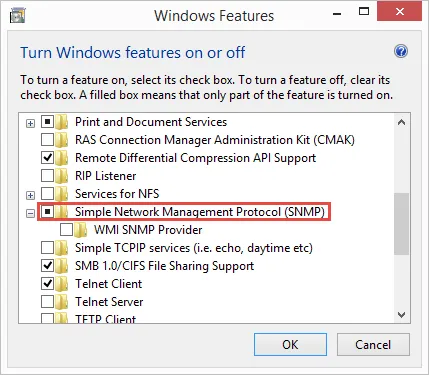
On the left-hand side, click Turn Windows features on or off.
-
Scroll to Simple Network Management Protocol (SNMP) and click the checkbox to select it.
-
Click OK.
The SNMP service will install.
Configuring the SNMP service
Section titled “Configuring the SNMP service”-
Click Start → Settings → Control Panel → Administrative Tools and then open Computer Management.
-
In the tree view, expand Services and Applications and then click Services.
-
In the list of services, scroll down and locate SNMP Service.
-
Under the Action menu, click Properties.
-
Click the Security tab.
-
Under Accepted community names, click Add.
-
Under Community Rights, choose READ ONLY.
-
In Community Name, type a case-sensitive community name, and then click Add. More information: SNMP Community.
-
Specify whether or not to accept SNMP packets from a specific host or all hosts:
-
To accept SNMP requests from any host on the network, click Accept SNMP packets from any host.
-
To limit SNMP requests to specific hosts, click Accept SNMP packets from these hosts, click Add, type the appropriate host name or IP address, and then click Add again.
-
-
Click Apply to apply the changes.
Example SNMP configuration
Section titled “Example SNMP configuration”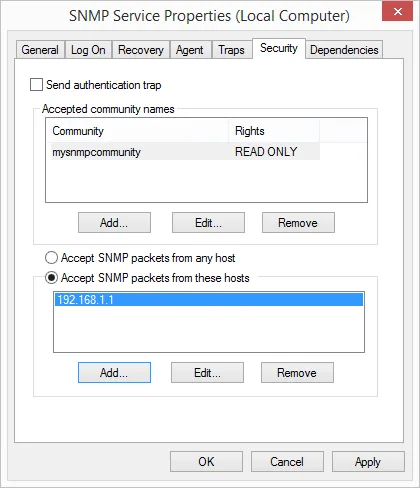
Installing net-snmpd on Linux varies from distribution to distribution. We recommend you consult the documentation and community forums for the most up-to-date instructions for your distribution (for example, the snmpd package on Debian/Ubuntu, or net-snmp on Fedora/RHEL).
Was this page helpful?
Found something wrong, unclear, or out of date? Let us know and we'll fix it.